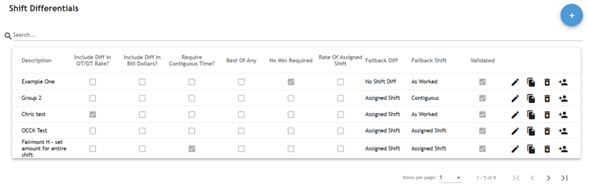
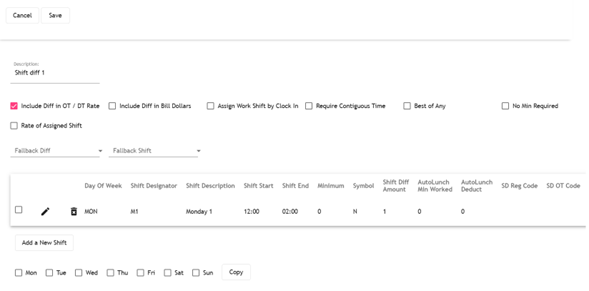
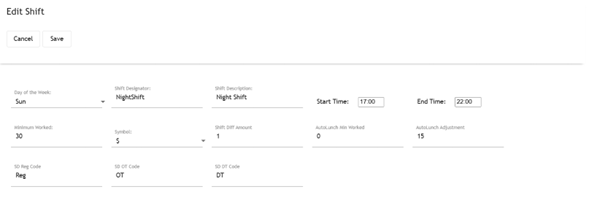
As part of the system improvement the configuration pages for Shift Differentials have been refactored.
List
Add/Edit
Add/Edit particular shift
#516 – Schedule view. New view per Employee
The application displays now, below the by position scheduling section, a list of all the employees that have been assigned to shifts in the displayed positions/days, making it easier to identify what shift has been assigned to each of the employees. The widget displays the start/end times, the position and, if the company is set up to, the skills of the assigned shift
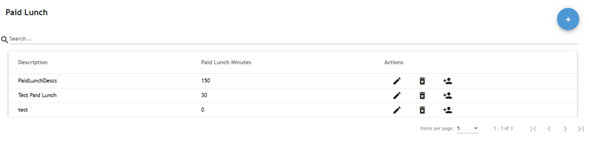
#567 – Paid Lunch migration
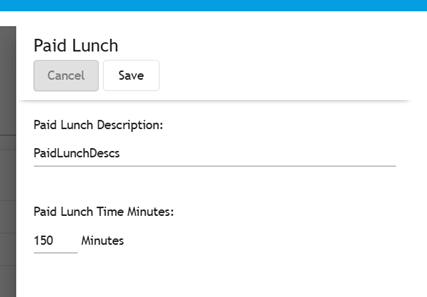
Paid lunch configuration page has been migrated to the new APIs and styling.
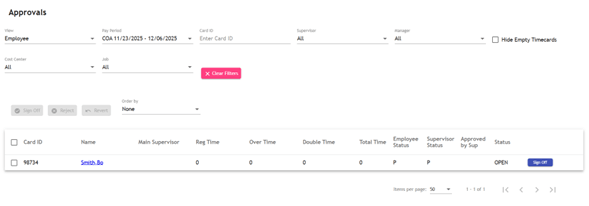
The page for the sign off by administrators or supervisors has also been migrated.
SCHEDULING
#536 – Employee Scheduling migration
The page used to view/edit the employee schedules has been re-designed to make it easier to edit an employee schedule and also as a tool to be able to work on multiple employees’ schedules at the same time.
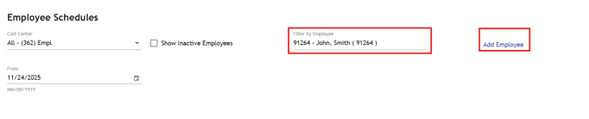
When the page opens the user will see a screen asking for the employee to view and the date “From”
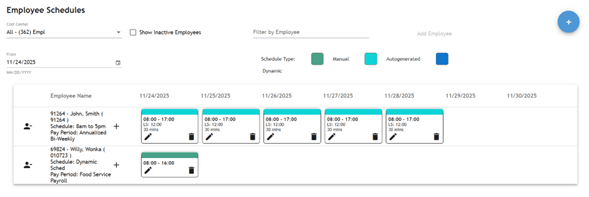
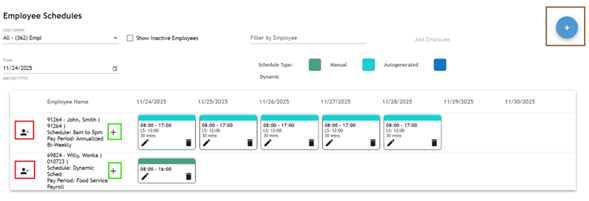
Once the employee is added to the view, a grid displaying the selected employees is displayed with the schedules for the selected from date and the next 7 days.
This view allows to perform the schedule maintenance actions
The icon highlighted in red will remove the employee from the view
The icon highlighted in green will open the dialog to enter a new schedule for that employee
The icon highlighted in brown will open the dialog to enter a new schedule for any of the employees selected in the view
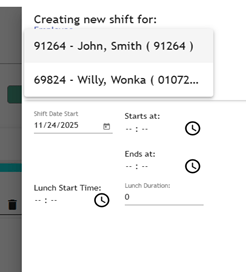
When the icon for adding a schedule for any employee is selected, it will open the dialog allowing to pick the employee from the list of displayed employees.
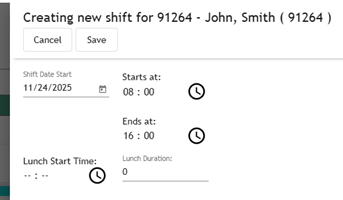
When the schedule is added for a particular employee, that information will be pre-populated.
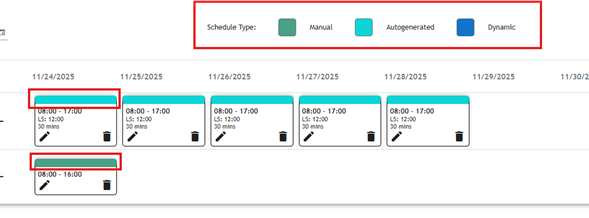
The different schedule types are color coded as described in the legends.
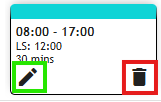
On each schedule the user will see 2 icons, one for edit (highlighted in green) and one for delete (highlighted in red).
ETIMECLOCK PROFILE
#508 – eTimeclock Profile migration
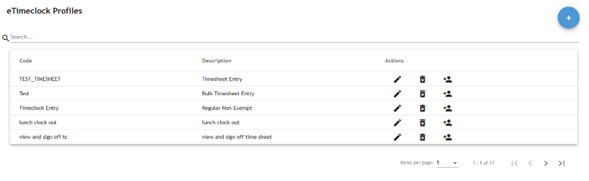
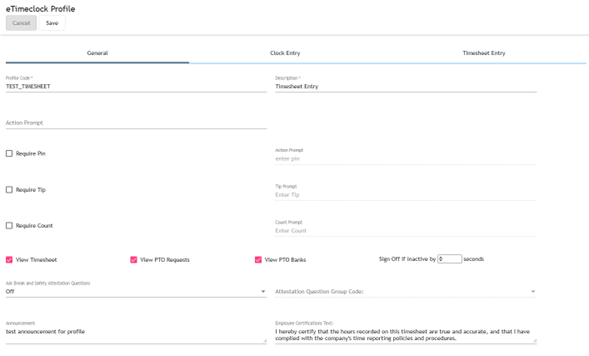
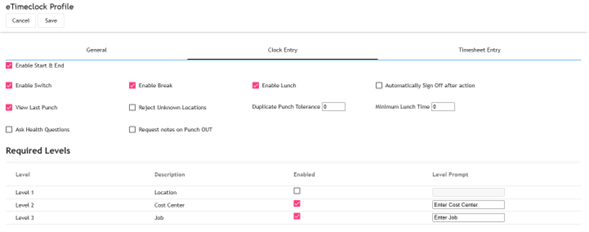
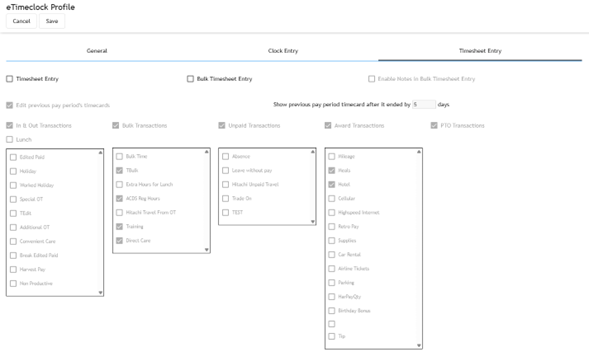
The page to view/edit the eTimeclock profiles has been migrated as well and the information has been reorganized in different tabs grouped by functionality.
List
Add/Edit pages
General configuration
Clock entry
Timesheet entry
MOBILE PROFILE AND WORKGROUPS
#569 – Add “Employee certification text”
A field has been added both to workgroups and to employee mobile profile to allow the entry of the “employee certification text” to be prompted upon a timecard approval by the employee.
COMPANY MEMBERS
#326 – Company Members migration and enhancements
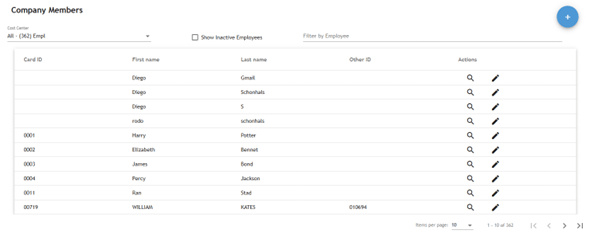
Company members page has been migrated, reorganized and also new data has been added to allow tracking of HR information.
List
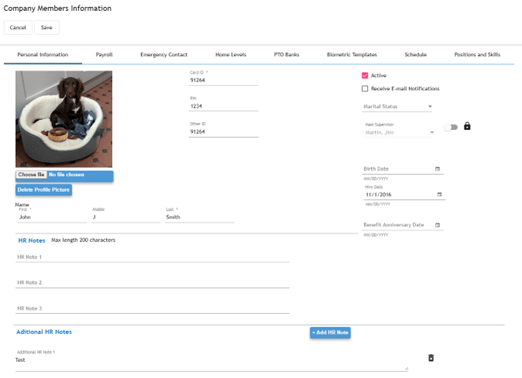
Add/Edit Company Member
Tabs and workgroups
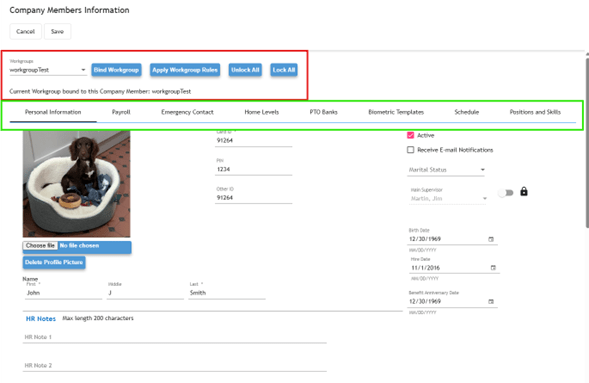
Workgroups integration (highlighted in red) has been implemented to improve the handling of rule updates across multiple employees.
The employee information has been organized in different tabs (highlighted in green):
Personal Information
Payroll
Emergency Contact
Home Levels
PTO Banks
Biometric Templates
Schedule
Position and Skills
Workgroups
Workgroups have been enhanced and integrated into Company members to allow handling rules updates more smoothly.
NOTE: Using workgroups is optional
On the workgroup section the user has a dropdown to pick a workgroup and 4 actions:
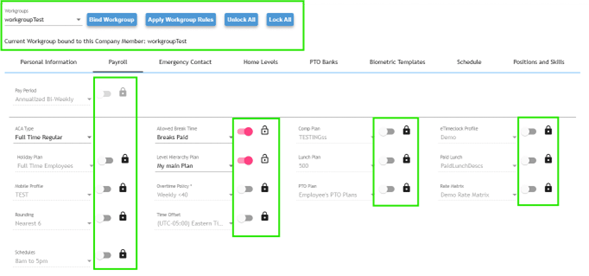
Bind Workgroup: The employee will be associated with the workgroup and any change to a rule or configuration in the workgroup will be replicated on the employee unless that particular rule is overridden at employee level (the lock icon for the rule should be unlocked, which means “manual override”)
Apply Workgroup rules: This option replaces the “Default Profiles”. Allows to apply Workgroup rules to the employee only one time. The employee is not bound to the Workgroup and any future change will have no impact on the employee.
Unlock All: Switches all locks to “unlocked” position.
Lock All: Switches all locks to “locked” position.
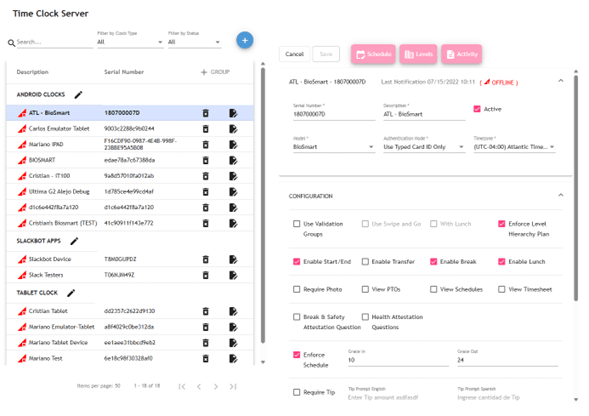
#530 – Timeclock Server re-design and add of Fingerprint Accuracy and Fingerprint Min Quality
Time Clock Server page has been re-designed to better use the available space on screen and display more information in a cleaner way.
In the example above, the employee is bound to the workgroup “wokgroupTest”, all rules are locked (bound to the workgroup) except Allowed Break Time and Level Hierarchy Plan. In this case any change to rules done in the workgroup will be reflected on the employee, except for the 2 rules with the manual override turned on (unlocked).
Personal Information
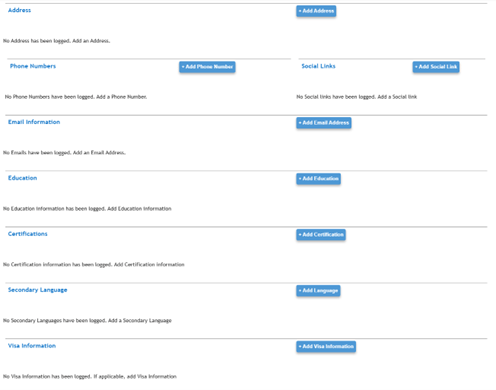
This section has been extended to allow uploading pictures of the employee, additional HR notes and HR information.
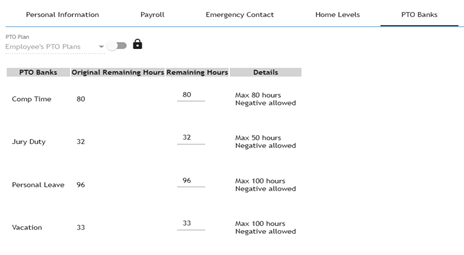
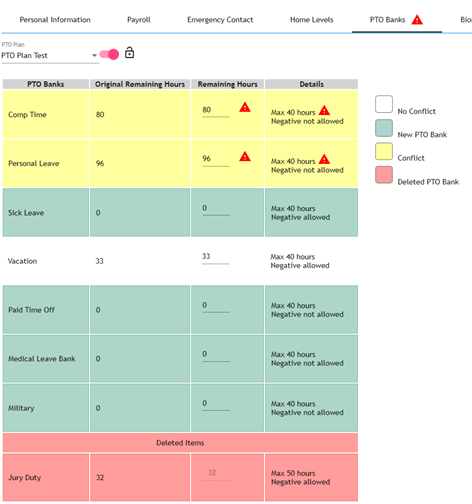
PTO Banks
PTO section has been modified to display information related to restriction on the banks.
And also improve the impact of a PTO change and potential conflicts to solve.
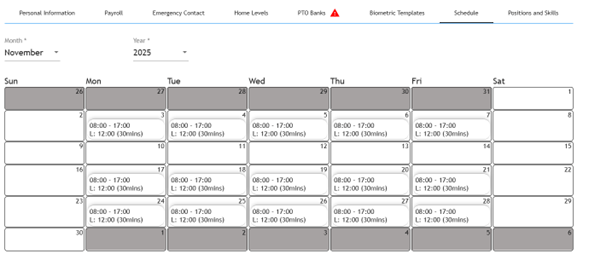
Schedule
This tab allows to quickly view the schedule for the employee.
EXPENSE TRACKING
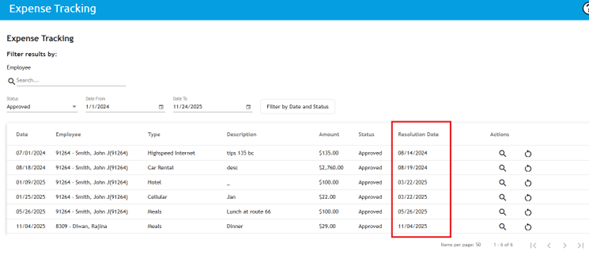
#594 – Add “resolution date”
Resolution Date has been added in the expense tracking list, allowing the user to identify when was an expense request either approved or rejected.
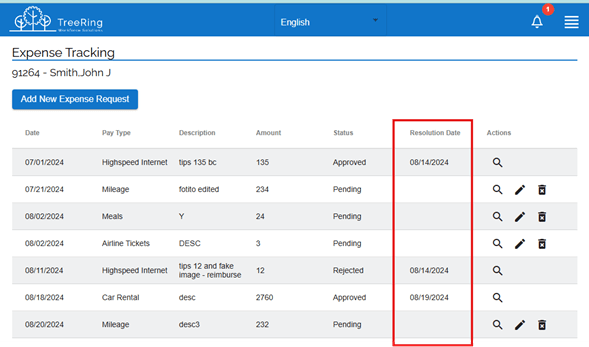
The same information has been added to eTimeclock to allow the employees to view the resolution date of their requests.
TIME CLOCK SERVICE
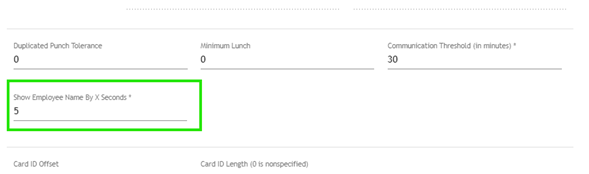
#543 – New configuration to set up for how long clock shows the employee names after punch
This field allows to define for how long is the employee name displayed after a punch is accepted.
#543 – New configuration to set up for how long clock shows the employee names after punch
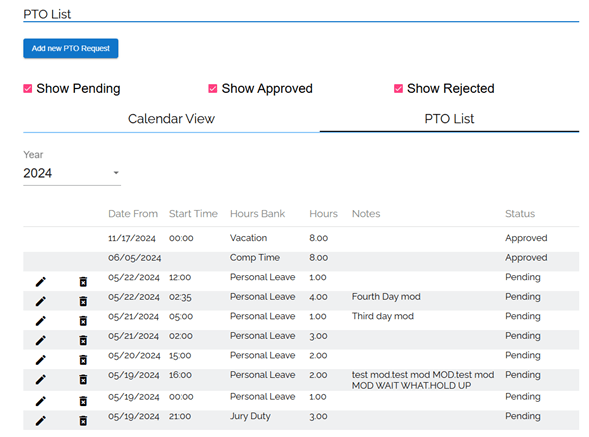
On the PTO List tab, the employee will be able to see the classic list of PTOs requested for the whole year, with the same filter capabilities and the option to pick a year to view.
#541 – New event: Sync Firmware Update
This event will tell the clock to look for a firmware update and download it if a new version is found.
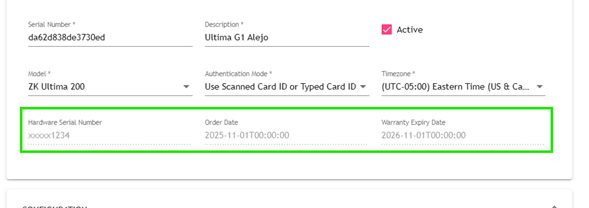
#562 – New clock devices fields
Information regarding the clock, Hardware Serial Number, Order Date and Warranty Expiry Date. This fields are read only and defined after a clock is created.
ETIMECLOCK
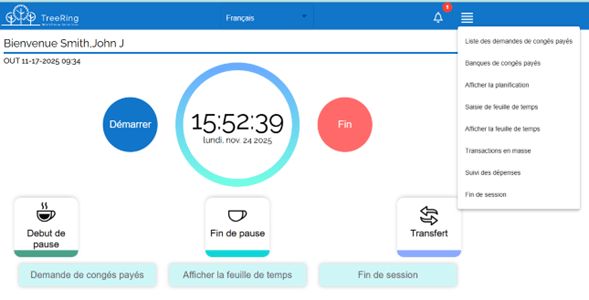
#557 – French version
Support for French language has been added to eTimeclock.